 VPSUForm
The 11 WordPress Plugins I Install on Every Site I Build
Every WordPress builder has a mental list of plugins they reach for first — the ones so familiar they install them on autopilot before worrying about the client's specific requirements. Mine has settled into 11 plugins that cover the non-negotiables. Not the trendiest, not the most feature-packed. Just the ones that actually prevent late-night panic calls and keep sites running smoothly years after launch.
This isn't a top 100 list. It's what gets installed before we even talk theme or page builder.
1. Rank Math — SEO
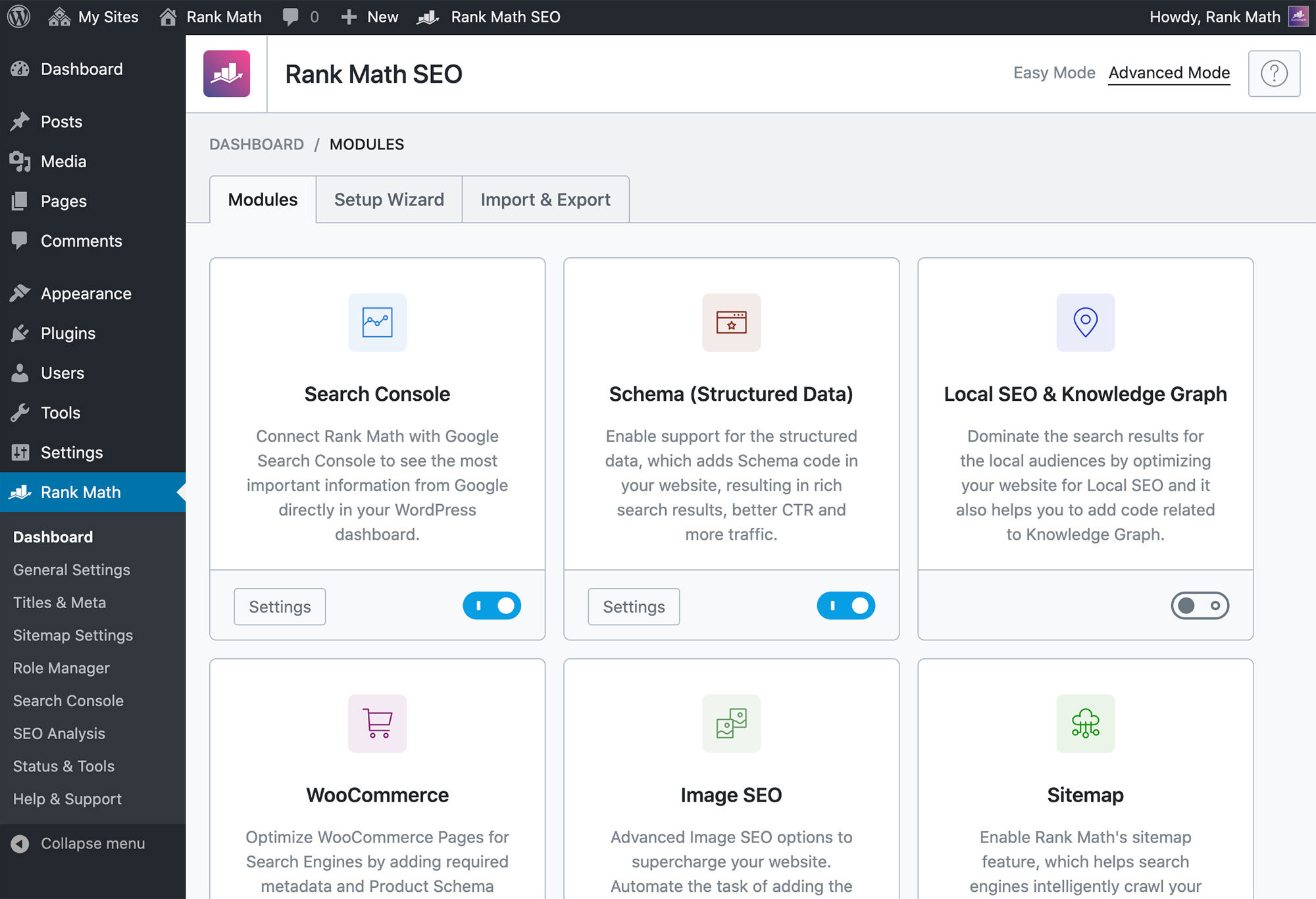
I used to be a Yoast person. Then I spent an hour scrolling through Yoast's settings screen trying to find one simple toggle, and I switched. Rank Math just feels built for people who actually have work to do.
What I use it for: meta titles and descriptions, XML sitemaps, schema markup (especially for local business and articles), 404 monitoring, and canonical URL management. The free version has more useful features than Yoast's paid tier, which tells you something.
Why this one: The Google Search Console integration works automatically — I don't have to think about it. Schema markup is built-in and comprehensive, not sold as a premium add-on. And the interface is clean enough that I can hand it off to clients without them immediately calling with questions.
Cost: Free, or Pro around $80/year if you want AI-powered content suggestions and advanced features.
2. Wordfence Security — Security

Security isn't something to cheap out on. Wordfence runs on over 5 million sites, which means its threat database is fed by real attacks across a massive sample size — the most current, most practical security rules in the ecosystem.
What it does: It acts as a web application firewall, blocks brute force login attempts, scans for known malware, and monitors file changes.
Why this one: The free version's firewall rules update every 30 days, which is fine for 90% of sites. The paid version gets real-time updates, but I only upgrade that when a client is handling sensitive data. For most sites, Wordfence free is overkill in the best possible way.
Cost: Free, or $120/year for real-time threat intelligence and priority support.
3. Akismet Anti-Spam — Spam Protection

WordPress ships with Akismet pre-installed, which I take as permission to use it. It's so effective that I've never had a spam comment make it past it — and I've tested this across dozens of sites with actual comment sections enabled.
What it does: filters spam comments and form submissions (if you're using Akismet-integrated forms).
Why this one: It just works. Activating it and moving on is the fastest way to eliminate comment spam. The API runs on Automattic's infrastructure (they're the WordPress.com company), which processes billions of interactions a day, so the data is absurdly comprehensive.
Cost: Free tier for personal blogs, or tiered pricing for commercial sites (starts around $5/month).
4. WP Super Cache — Caching

If the hosting is LiteSpeed-based, I use their native LiteSpeed Cache plugin instead. But for standard WordPress hosting, WP Super Cache is the straightforward choice — it's fast enough that pages load in a fraction of the time without adding complexity.
What it does: Generates static HTML caches of your pages so WordPress doesn't have to rebuild them on every request.
Why this one: It's simple enough that clients can understand "it makes your site faster," but powerful enough that it genuinely does. No CRON job confusion, no complex rules — install, enable, done. Most sites see a 30–50% improvement in page load times with zero configuration.
Cost: Free.
5. WPForms Lite — Contact Forms
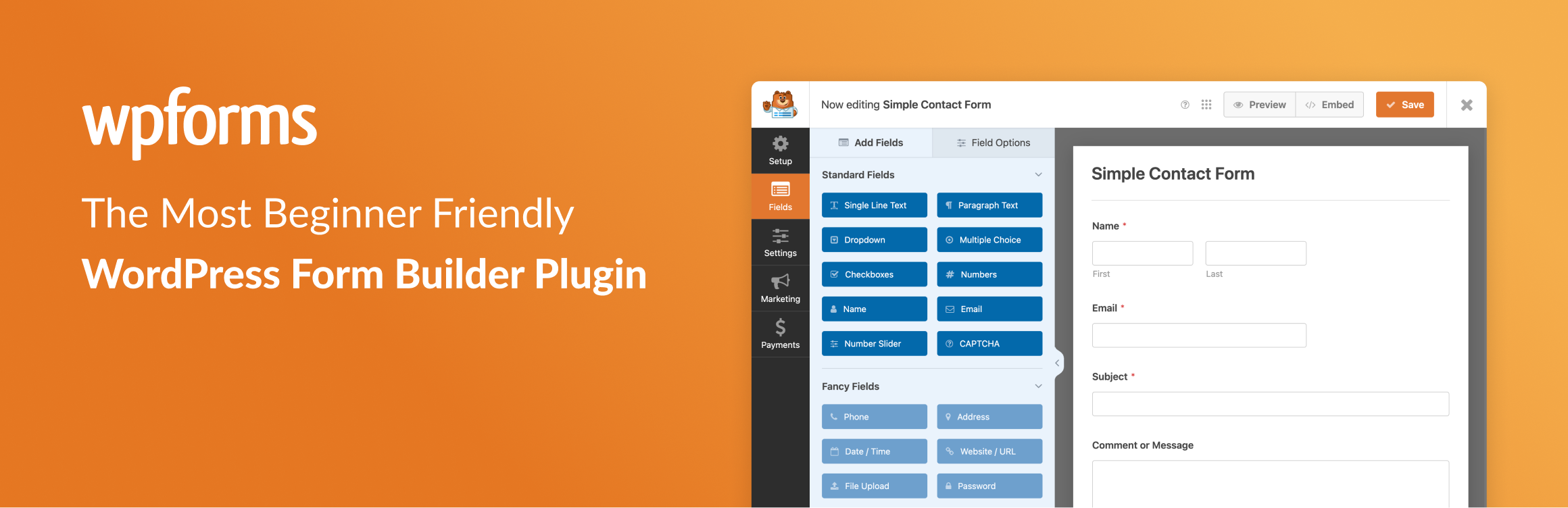
I know Contact Form 7 is free and technically enough. But I've watched enough clients struggle with CF7's code-first approach that I just use WPForms. The drag-and-drop builder means I can build a form in 30 seconds instead of 30 minutes, and the client can modify it later without breaking anything.
What it does: creates contact, newsletter signup, and feedback forms with a visual builder.
Why this one: The free tier includes spam protection, email notifications, and entry management in the WordPress admin — everything most sites actually need. If a client wants payments or advanced integrations later, the upgrade path is there.
Cost: Free, or Pro plans from around $99/year for payment forms and integrations.
6. UpdraftPlus — Backups

Hosting backups are great until they're not. I've seen hosting companies lose a customer's backups in a server failure, which is exactly why I use a third-party backup plugin that pushes offsite copies to Google Drive, Dropbox, or S3. It's cheap disaster insurance.
What it does: creates full site backups (database + files) and stores them in cloud storage automatically.
Why this one: the free version lets you schedule daily backups and push them to cloud storage — that's genuinely all most sites need. The interface is straightforward, and restoration works on shared hosting without FTP drama.
Cost: Free for basic backups, or $70/year Premium for features like automatic cleanup and backup encryption.
7. Duplicator — Site Migrations and Staging
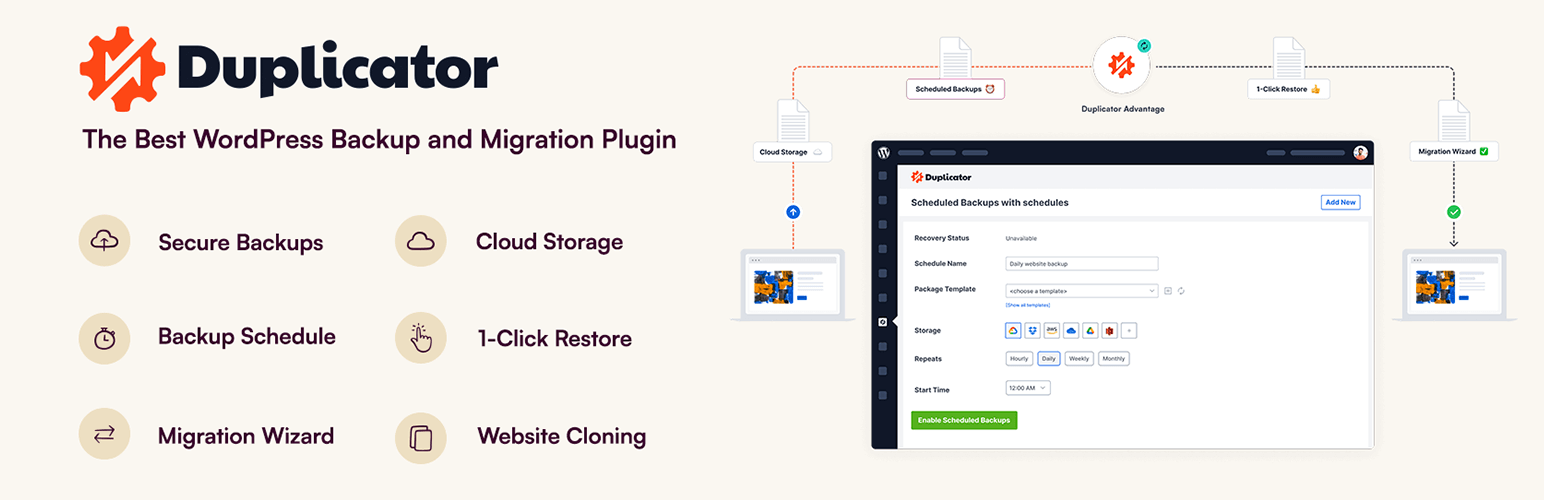
Building a staging copy of a site or moving to new hosting shouldn't require FTP access and a database dump. Duplicator packages your entire site into a single installer file that you can move anywhere and run through the web browser. I've used it probably 200 times, and it's never broken a site.
What it does: creates a complete snapshot of your WordPress site and lets you deploy it anywhere without manual database migration.
Why this one: the free version handles 95% of what I need. Staging copies, moving to new hosts, testing theme changes in a safe environment — all without touching FTP or phpmyadmin.
Cost: Free for basic backups and migrations, or Pro around $80/year for recurring backups and advanced storage options.
8. MonsterInsights — Analytics
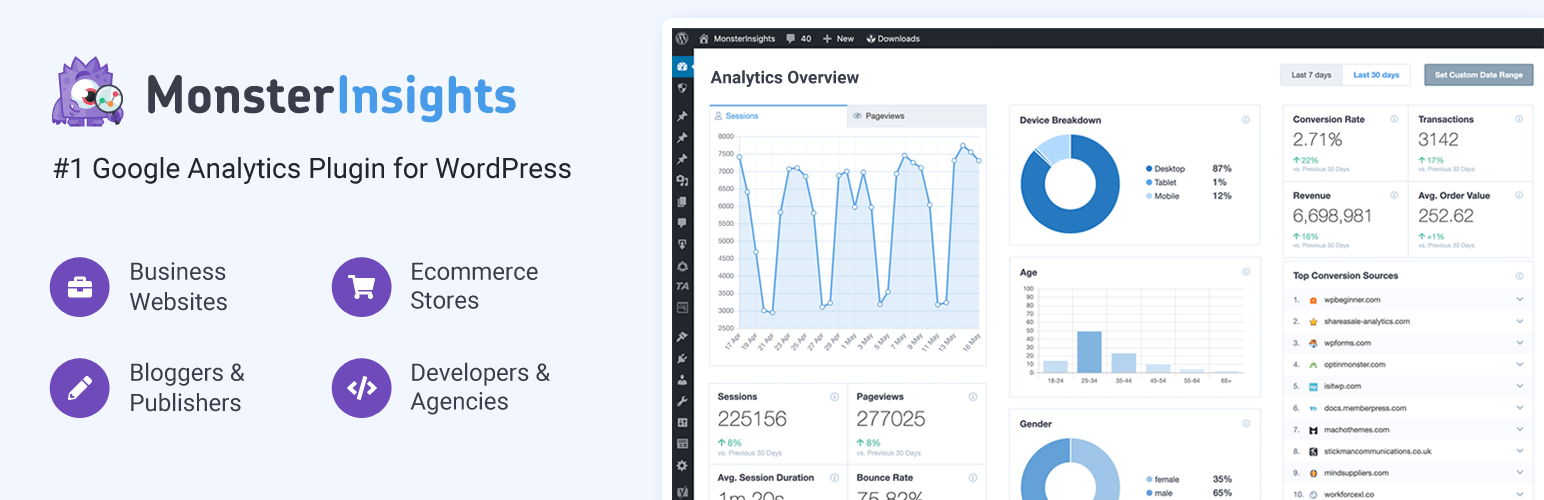
Most clients don't understand Google Analytics if it means logging into Google's admin console. MonsterInsights brings analytics into the WordPress dashboard, which makes it actually useful — I can look at a widget on the home page and see traffic trends without explaining GA4 terminology.
What it does: connects Google Analytics to WordPress and displays key metrics (traffic, top pages, conversions) in your admin dashboard.
Why this one: the free version is genuinely capable — traffic reports, page analytics, and search console data right in WordPress. Pro adds things like form conversion tracking and ecommerce insights, but free is enough to get started.
Cost: Free, or Pro from around $100/year for advanced conversion tracking.
9. WPCode — Code Snippets
Instead of asking clients to paste code into functions.php (which breaks at theme updates), I use WPCode. You add snippets through the WordPress admin interface, and they stay safe even when WordPress or your theme updates.
What it does: lets you add custom PHP, JavaScript, or CSS to specific pages or your entire site without editing theme files.
Why this one: I use it probably 5 times per site. Google Tag Manager code, custom CSS to fix a layout quirk, tracking pixels, form validation tweaks — all without risk of losing them during updates.
Cost: Free core version is enough for most needs.
10. ShortPixel Image Optimizer — Image Optimization

Image optimization is one of the biggest page speed wins — sometimes a 20-30% improvement with zero work. ShortPixel compresses images automatically and can serve them in modern formats like WebP. The free tier handles reasonable monthly volumes.
What it does: automatically compresses new image uploads and offers bulk optimization of existing images.
Why this one: it actually works. Images look noticeably better than competitors' compression, and the modern format delivery (WebP to browsers that support it) is just faster. The free tier gives you 100 monthly credits, which is plenty for small sites.
Cost: Free tier (100 images/month), or paid plans starting around $5.99/month for unlimited images.
11. Site Kit by Google — Search Console + Google Tools
This is the newest addition to my standard stack. Site Kit connects Google Search Console, Analytics, PageSpeed Insights, and other Google tools to your WordPress dashboard. It reduces setup friction — everything integrates automatically once you authenticate with Google.
What it does: consolidates Google's suite of tools (Search Console, Analytics 4, PageSpeed Insights, Google Ads) into a single WordPress dashboard.
Why this one: it's officially maintained by Google, so it stays current with API changes. Seeing Search Console data without leaving WordPress means I'm more likely to catch crawl errors and indexing issues early. Plus it's free, which doesn't hurt.
Cost: Free.
Quick Reference: All 11 at a Glance
| Plugin | Pricing | Free Plan | Best For |
|---|---|---|---|
| Rank Math | Free or Pro from $80/yr | ✅ Yes | SEO optimization and schema markup |
| Wordfence | Free or $120/yr | ✅ Yes | Site security and firewall protection |
| Akismet | Free (personal) or from $5/mo | ✅ Yes | Spam protection on comments and forms |
| WP Super Cache | Free | ✅ Yes | Page caching and speed optimization |
| WPForms Lite | Free or Pro from $99/yr | ✅ Yes | Contact forms and form submissions |
| UpdraftPlus | Free or Premium from $70/yr | ✅ Yes | Automated offsite backups |
| Duplicator | Free or Pro from $80/yr | ✅ Yes | Site migration and staging |
| MonsterInsights | Free or Pro from $100/yr | ✅ Yes | Analytics and traffic reporting |
| WPCode | Free (core version) | ✅ Yes | Custom code snippets management |
| ShortPixel | Free tier (100/mo) or from $5.99/mo | ✅ Yes | Image compression and optimization |
| Site Kit by Google | Free | ✅ Yes | Search Console and Google tools |
What's Notably NOT on This List
A page builder plugin: I handle that separately depending on the project. Elementor for drag-and-drop clients, Bricks for performance-critical sites, or just Gutenberg for simpler projects. It's not a default.
Extra SEO tools: Rank Math covers what matters. I don't need an internal linking plugin or a keyword rank tracker on every site — those are luxury tools, not requirements.
Multiple backup plugins: I'm not running UpdraftPlus AND Duplicator because I'm paranoid. Duplicator handles point-in-time recoveries, UpdraftPlus handles automated daily backups. That's the division of labor.
Database optimization plugins: These are mostly cargo-cult programming. Fix your queries, use a caching plugin, and move on. Automatic database "cleanup" usually does more harm than good.
The Real Rule: Audit Twice a Year
Every six months, I disable all plugins and re-enable them one by one, timing the site's page load time after each one. A plugin that was performing fine 18 months ago might have been overtaken by something better, or might have picked up some bloat. That's when you find the plugins you forgot you had installed.
The 11 I listed here have never once failed that audit. The moment one does, it gets replaced. That's how I know they're actually essential.